OttoLearn offers a first college statistics course, Introduction to Probability and Statistics, in 21 interactive lessons, with a teacher workspace. Here is what you can inspect right now, then what the workspace gives you before, during and after a class, then what you need to know before adopting it.
Tell us your college, the course, how many groups, and whether your college has an approval process. “What happens when you write” describes the reply.
Before you decide
What you can read today, without an account.
The course design, in full view
A colleague recommends a course site, and all you can see is its home page.
You can inspect all of it before deciding: the standards of the course (the short list of things a student must be able to do), its schedule, how each standard maps to the ministry competency, and a page for students on how standards-based grading works and why. All of it is readable without an account.
Why We publish the whole design, grading rules included, knowing that anyone can then judge it. A teacher deciding for a class should not have to take our word.
Every new tool starts with a week of account problems.
Your students can start tonight: each lesson has the same ten parts, from prerequisites to a mastery check, with worked examples, practice with feedback, interactive figures and full solutions.
Why Reading asks nothing of a student, so the first week is spent on statistics and not on accounts.
A 95% confidence interval for a mean runs from 12 to 18. Which statement is correct?
This is one question as your students meet it. Each wrong answer matches one specific misconception, and the feedback names it.
The teacher workspace
The pictures below come from fictional test classes. “What exists today”, further down, says where use with real students stands.
Each row opens: what the page does, why, and a picture.
Teach: what you read
Which class needs you first
Three groups, one evening, and no way to tell where your time matters most.
What it does, and why
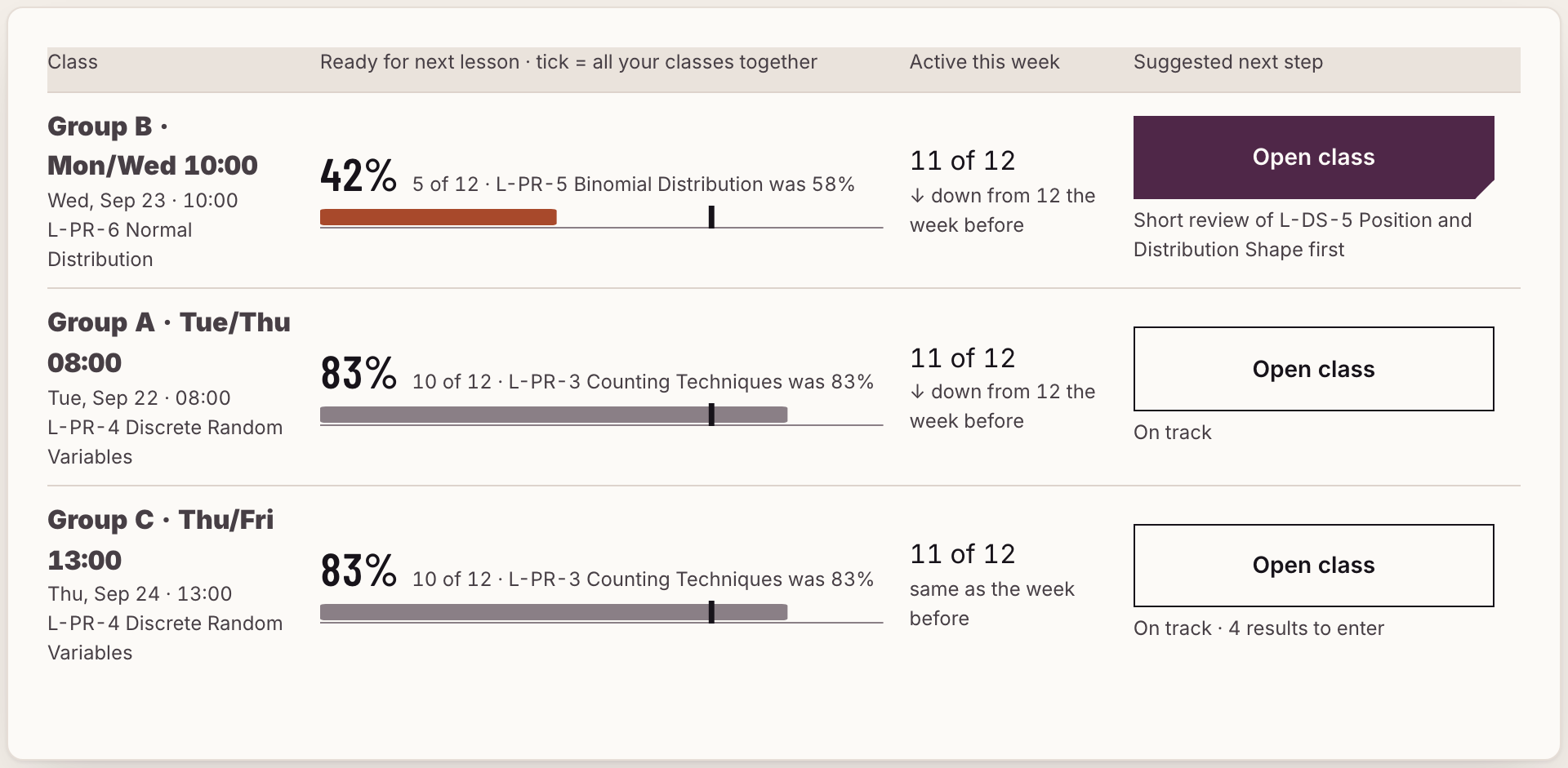
You know where to start: your classes are shown side by side with the one that needs you first on top. The main figure for each is the share of students ready for its next lesson.
Why A dashboard should answer a question, not hand you forty numbers. The main figures sit beside a comparison, because a number alone says little.
The class that needs you first is on top, with the reason.
A fictional class: the names and numbers are invented. Tap or click a picture to see it at full size.
Before class: one screen, five minutes
You have five minutes before teaching and want to know what to do differently today.
What it does, and why
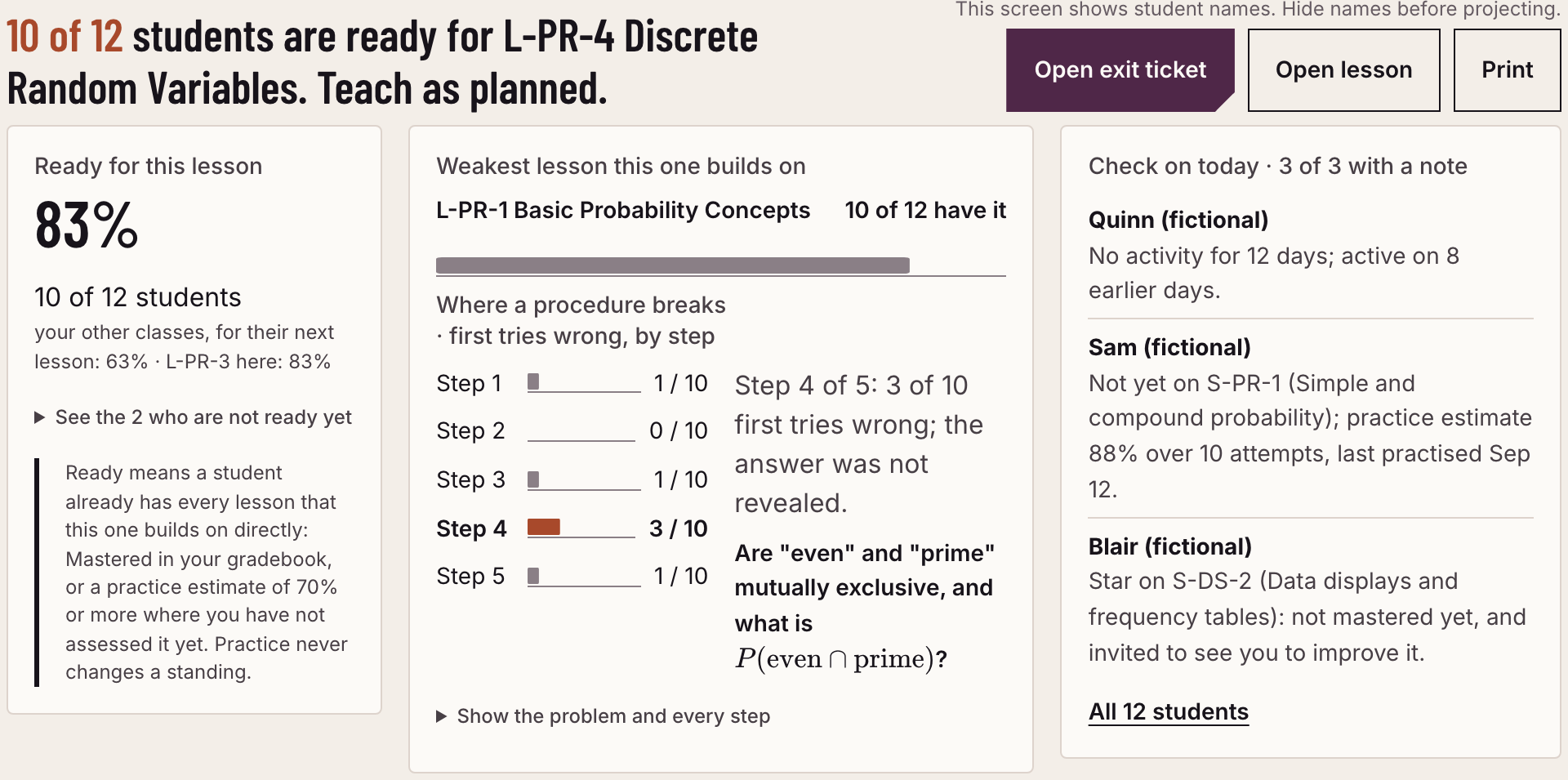
You walk in knowing what to review: one screen says how many students are ready for the next lesson, with the names behind the number, what to review first, and three students to check on. It prints. Under “More”: what the lesson builds on and suggested groups for in-class work.
Why “Ready” has a stated definition: the student has what the next lesson builds on, from the results you entered or, where you have not assessed yet, from a practice estimate (a running estimate from a student’s checked first attempts, in which recent answers weigh more). It is information for you and is not a result. You can read why each name is there, so you can disagree with it.
The headline answers the question; the three cards are the evidence behind it.
A fictional class: the names and numbers are invented. Tap or click a picture to see it at full size.
After class: an exit ticket in one question
The class nodded. You will find out on the test whether they understood.
What it does, and why
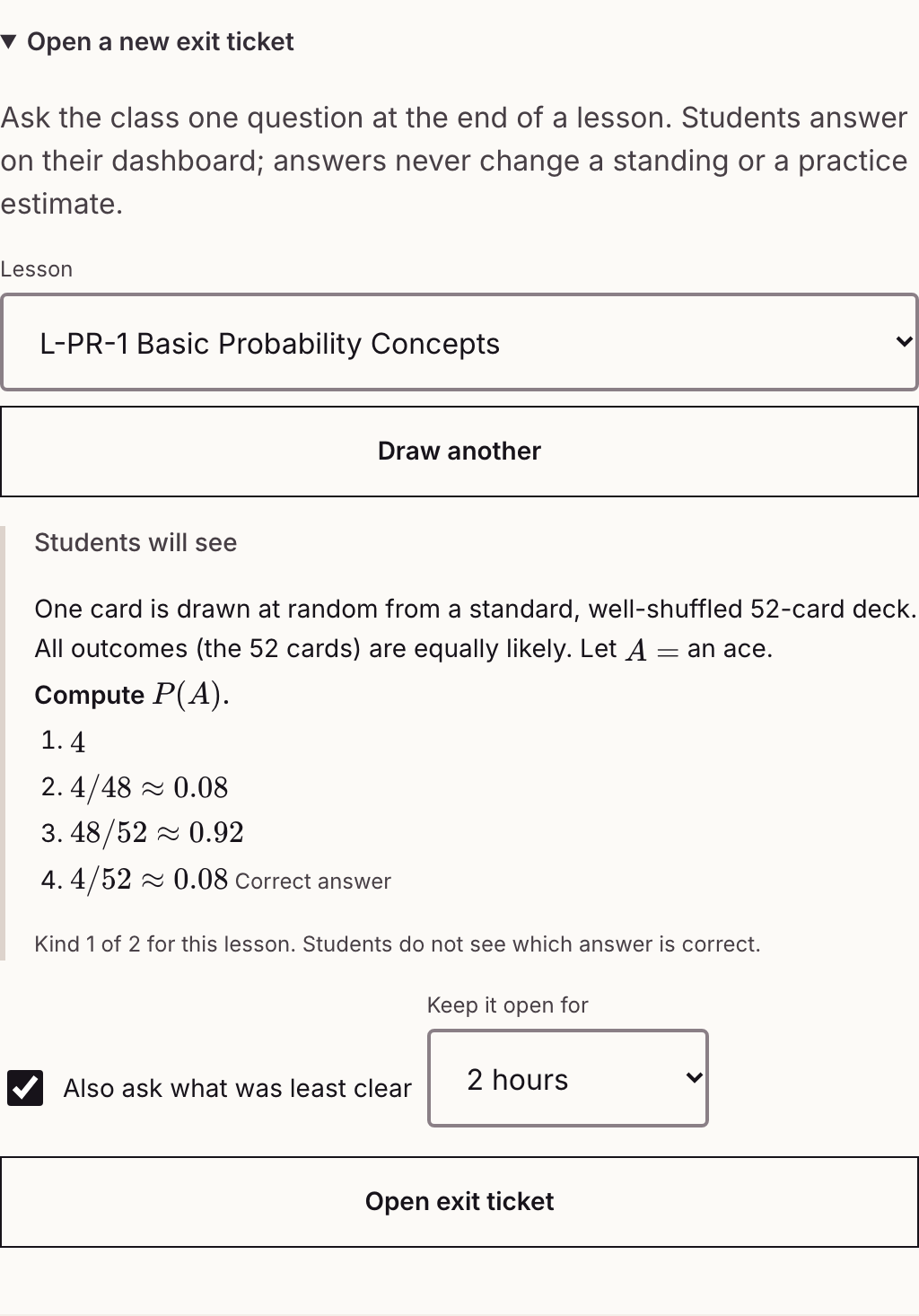
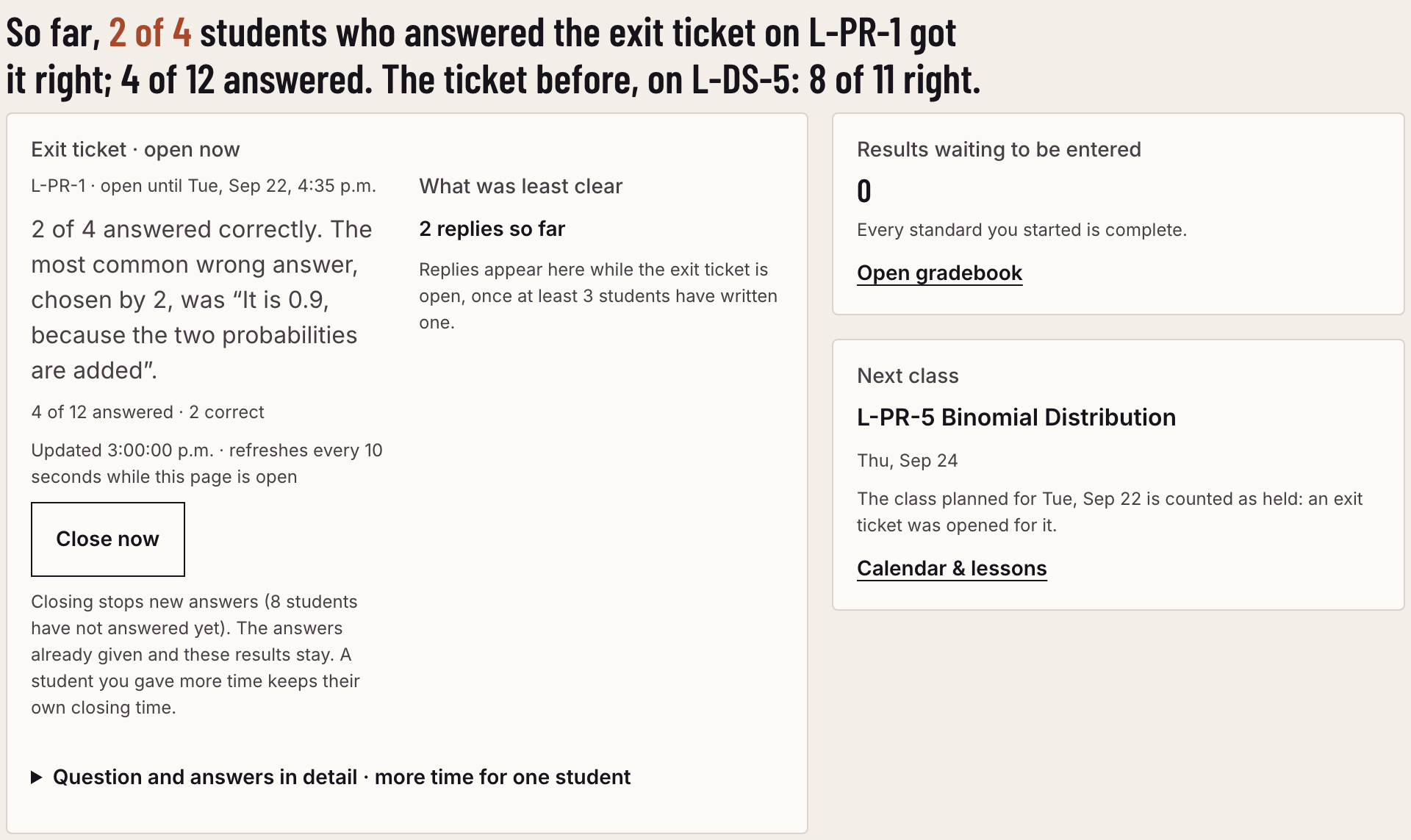
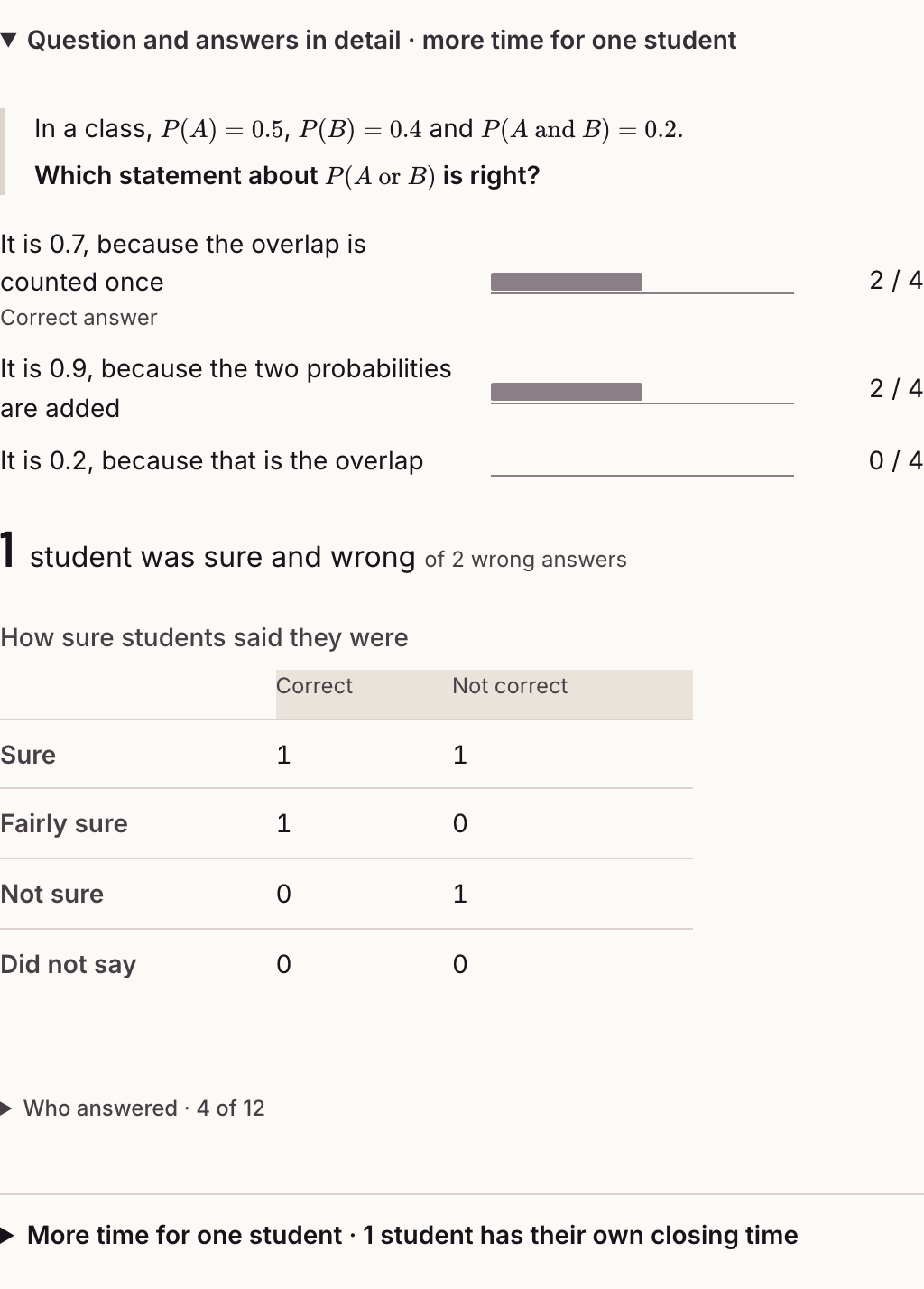
You see the same day how the class answered: draw one question on the day’s lesson and open it for thirty minutes, two hours or until midnight. You see the count for each answer, the most common wrong answer, who answered and how sure they were, and what students said was least clear.
Why One question answered the same day tells you more than a quiz a week later. “Least clear” replies are shown without names, and only once at least three students have written one; if you watch replies arrive you may still be able to tell who wrote one.
1. Notice the correct answer is marked for you only, and “Also ask what was least clear” is ticked. 2. Notice “4 of 12 answered”: you can tell when it is worth waiting, and how this ticket compares with the one before. 3. Notice which wrong idea was chosen most, and how many students were sure and wrong.
A fictional class: the names and numbers are invented. Tap or click a picture to see it at full size.
Each student on one line
You sense that someone is slipping away, three weeks too late.
What it does, and why
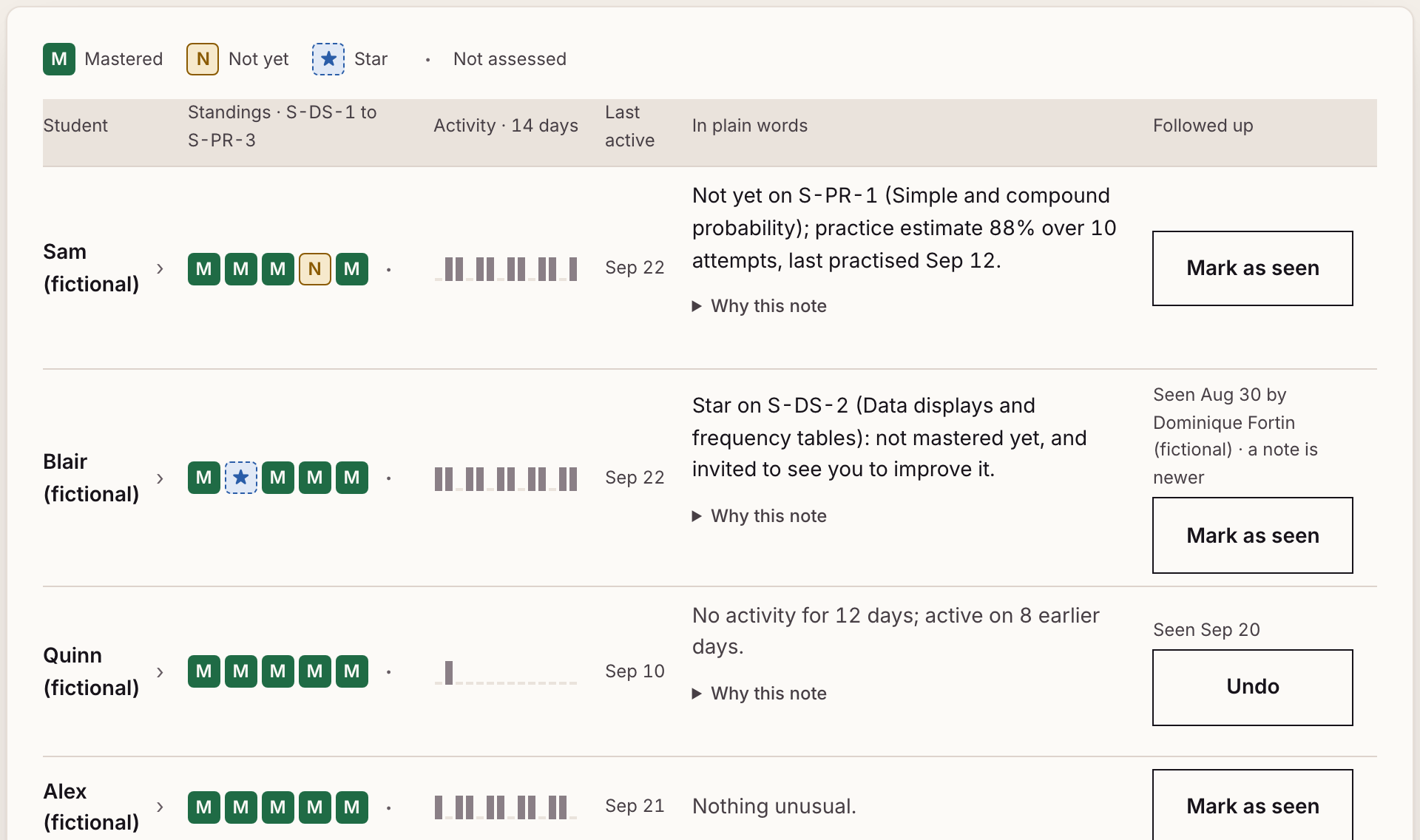
You see who to speak to this week: one row per student, with the results you entered, a mark for each of the last fourteen days showing whether they were active, and one plain-language remark with a “Why this note” beside it.
Why The remarks are written by fixed rules, not by AI, so the same facts give the same remark and you can check the reason.
Notice the “Why this note” link under each remark: you can check the reason.
A fictional class: the names and numbers are invented. Tap or click a picture to see it at full size.
The course so far
By week ten you no longer remember which lesson went badly in which group.
What it does, and why
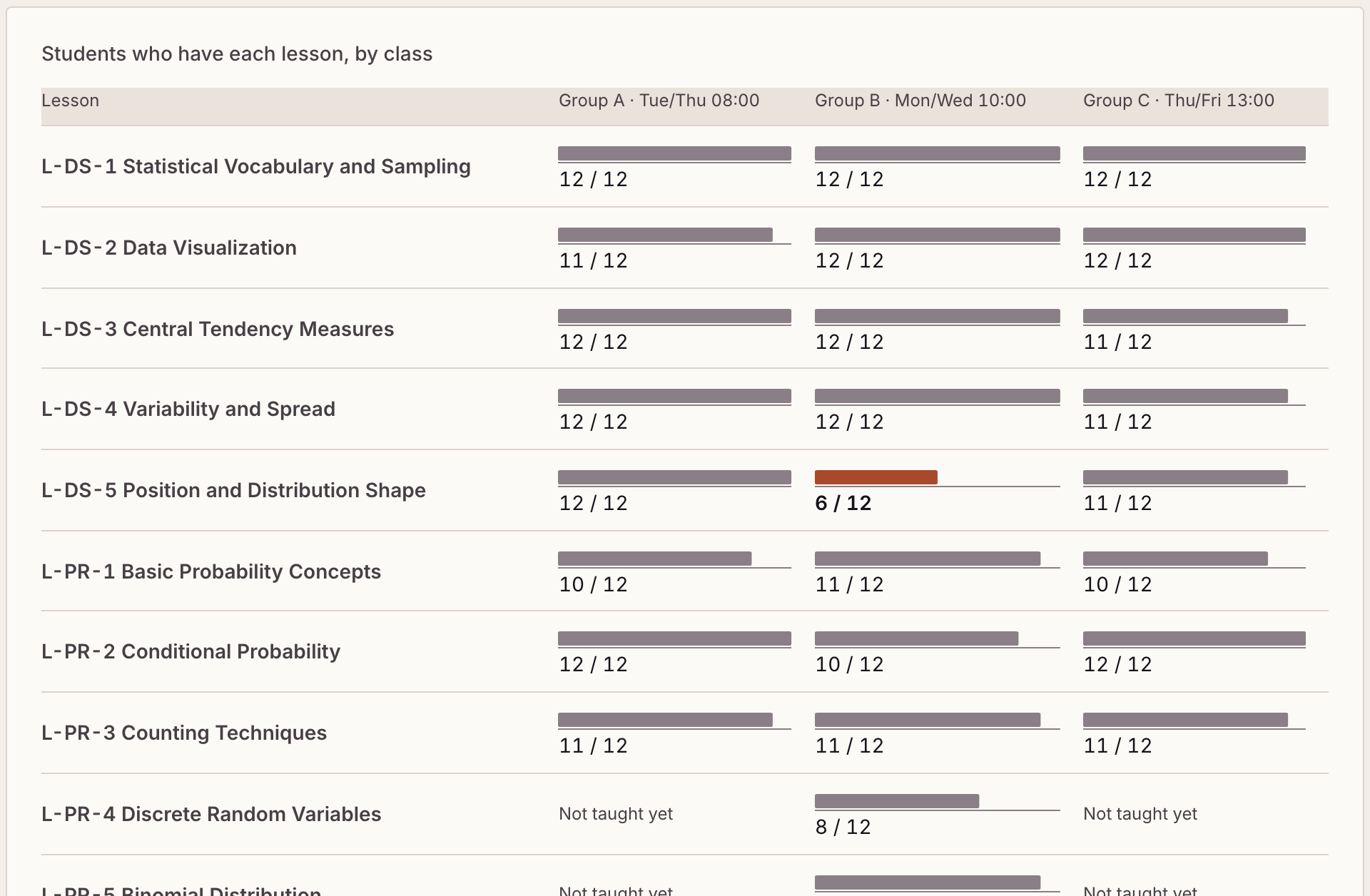
You can see which lesson needs a return, and in which group: how each lesson landed, class against class, which lessons are coming due for review, and a standards sheet for the class that prints.
Why Classes are set side by side because a lesson that went badly in one group and well in two is a question about that group, not about the lesson.
Notice Group B on the position and shape lesson: 6 of 12, where the other groups have 11 or 12.
A fictional class: the names and numbers are invented. Tap or click a picture to see it at full size.
A Monday summary by email, if you want one
Still being extended
You mean to check the dashboard and the week gets away from you.
What it does, and why
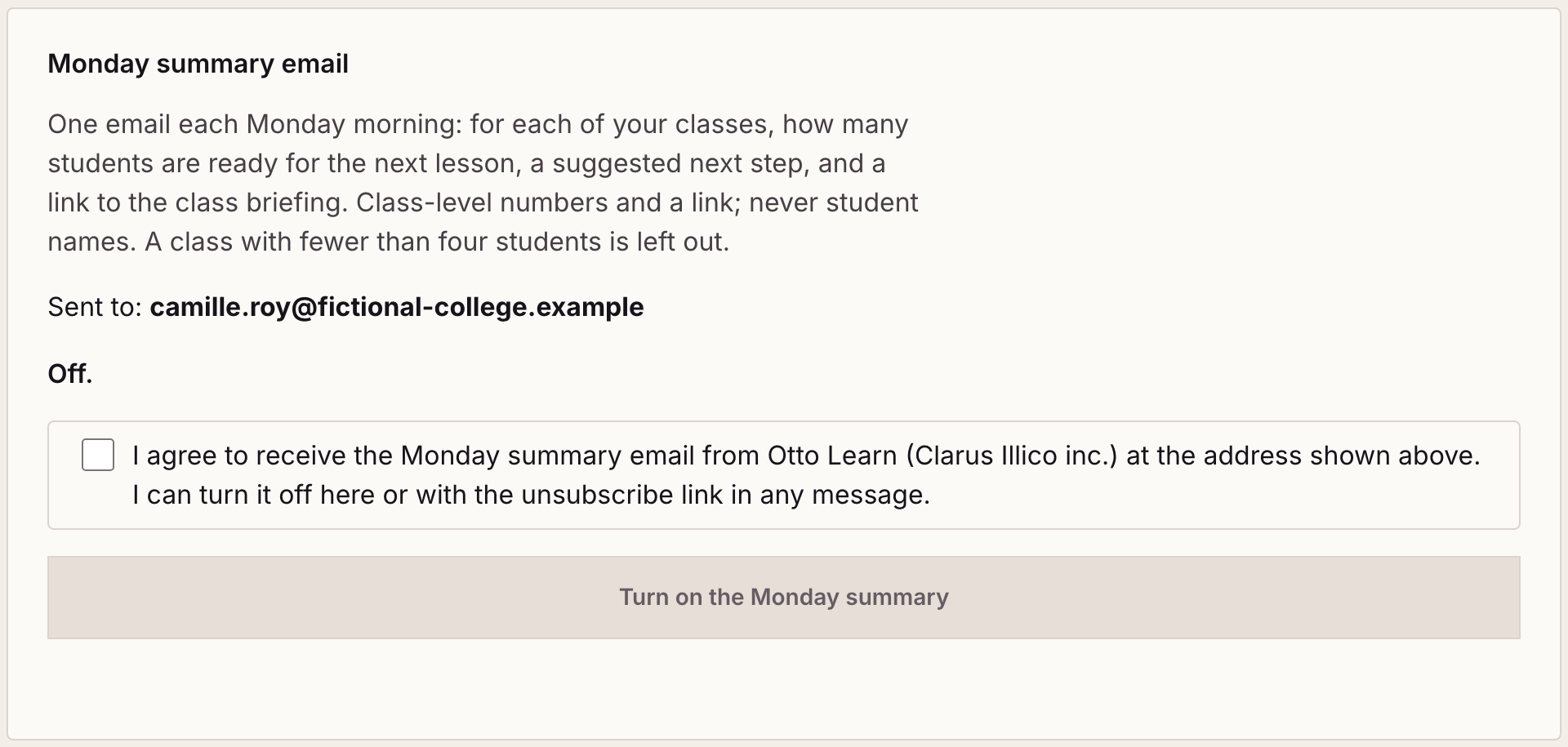
The state of your classes reaches you without logging in: an optional weekly email. It is off until you turn it on in Class settings, and every message has an unsubscribe link. If its card is not on your Class settings page, the email is not available for you yet.
Why It describes each class as a whole (numbers, a suggested next step and a link), not a student by name: an inbox is the wrong place for one.
Notice the state “Off” and the consent box: nothing is sent until you agree, and nothing in it is about an individual student.
A fictional class: the names and numbers are invented. Tap or click a picture to see it at full size.
Practice recommended to the students who need it
Still being extended
The same homework for everyone is too much for some and beside the point for others.
What it does, and why
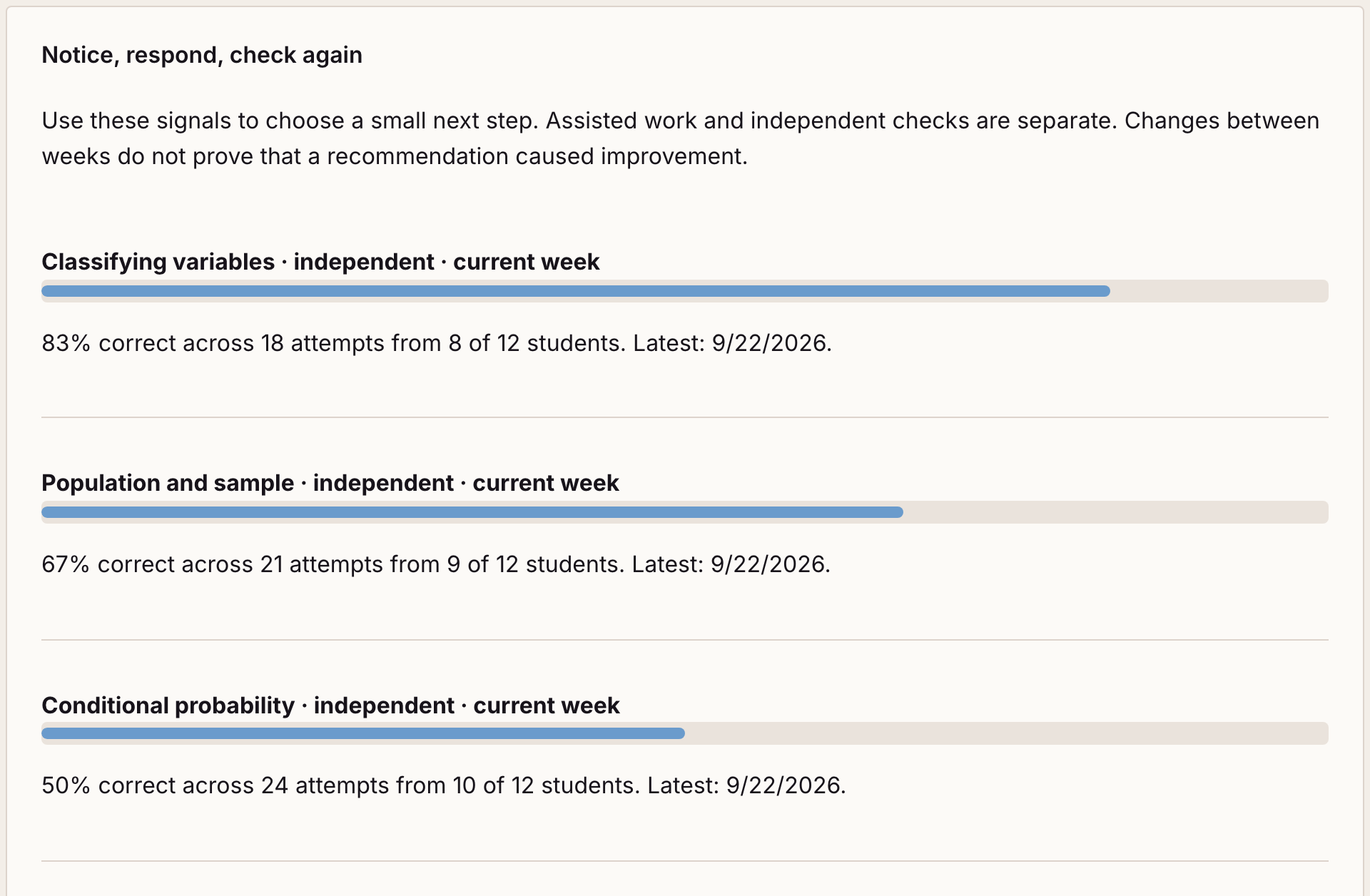
You see where the class stands on each topic, then choose what to recommend to whom: pick topics, filter students by a result you recorded, set the approximate minutes and send. It currently covers three topics of the statistics course.
Why A recommendation is an invitation, not an assignment. Students are more willing to work on a weakness when being wrong costs nothing.
Notice “18 attempts from 8 of 12 students”: you see how much evidence a figure rests on before you send anything.
A fictional class: the names and numbers are invented. Tap or click a picture to see it at full size.
Assess: what you enter
Each student’s practice, problem by problem
Still being extended
A student says “I practised and I still don’t get it,” and a percentage does not tell you where it went wrong.
What it does, and why
You can open one student’s practice and read it problem by problem: the date, an example of the problem, whether the first answer was right, the option chosen, later tries on the same problem and whether the student got there, whether help was used, and, for a step-by-step problem, which step took several tries. It appears only in a class approved for it, and only for a student who has agreed on their account page; a student can stop sharing at any time.
Why Helping one student starts with seeing their work. Sharing it is the student’s choice, class by class, because what they do while practising is theirs; later tries are deleted after 180 days, and practice does not set a result.
A gradebook where only you decide
You open a platform and find it has already turned your students’ clicks into a grade.
What it does, and why
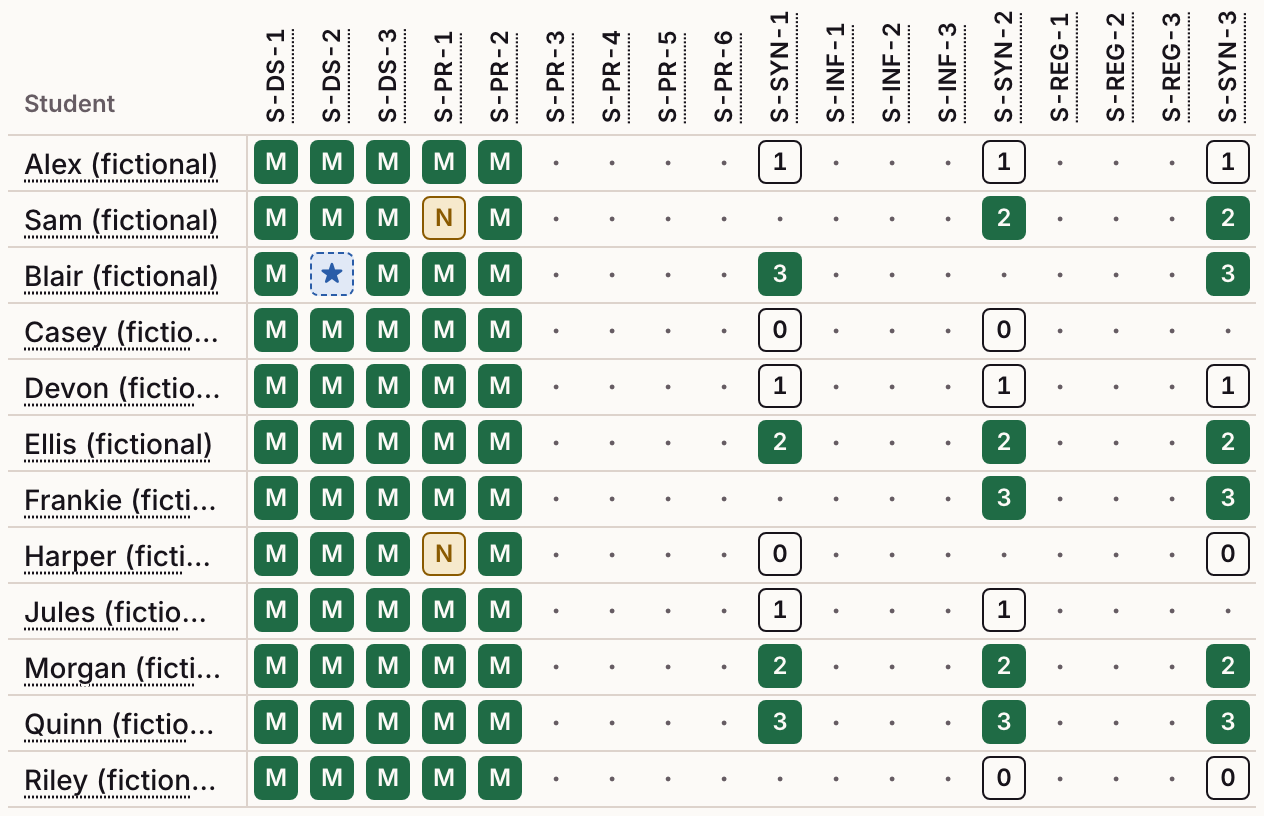
The result on record is the one you entered: a compact grid, students down and the course standards across (a standard is one thing the course expects a student to be able to do), filled in from the keyboard, with undo, a change history and a download as a spreadsheet. Use the Mastered / Not yet scale, where a star means “not yet, come and see me”, or a scale and weights of your own.
Why Practice is where students are supposed to be wrong. If it counted, they would stop taking risks. So practice, exit tickets and AI do not set a result; you do.
Notice the two amber N cells and the one blue star. The column codes are the course standards; the numbered cells belong to the synthesis standards, which are scored 0 to 3 instead of Mastered / Not yet.
A fictional class: the names and numbers are invented. Tap or click a picture to see it at full size.
Tests aligned with the lessons, with answer keys
Still being extended
Writing a fair test that matches what was taught takes an evening you do not have.
What it does, and why
You get a test that matches what was taught without writing it: a library of released tests, one mini test so far, each with a student version and an instructor version, opened in a printable viewer.
Why Tests are released as a fixed library, each with a separate instructor version, so that a test means the same thing in every group. The answer keys sit behind a teacher sign-in with two-step verification, so the test stays usable.
Set up: what you configure
Set the next lesson and share the preparation
Sunday night: you know what you teach on Tuesday, and your students do not.
What it does, and why
Your students see what is next and what to prepare: choose the next lesson for a class, open its materials and share preparation. Saving makes the plan visible to the students enrolled in the class.
Why You set the next lesson yourself; the site does not guess it from a calendar, because only you know when a class has fallen behind. That one choice feeds the readiness figure and the review list.
Notice the next lesson: this is what the readiness figure is computed for.
A fictional class: the names and numbers are invented. Tap or click a picture to see it at full size.
Classes that students join with a code
The term starts Monday and the platform wants a spreadsheet of your students’ names and emails.
What it does, and why
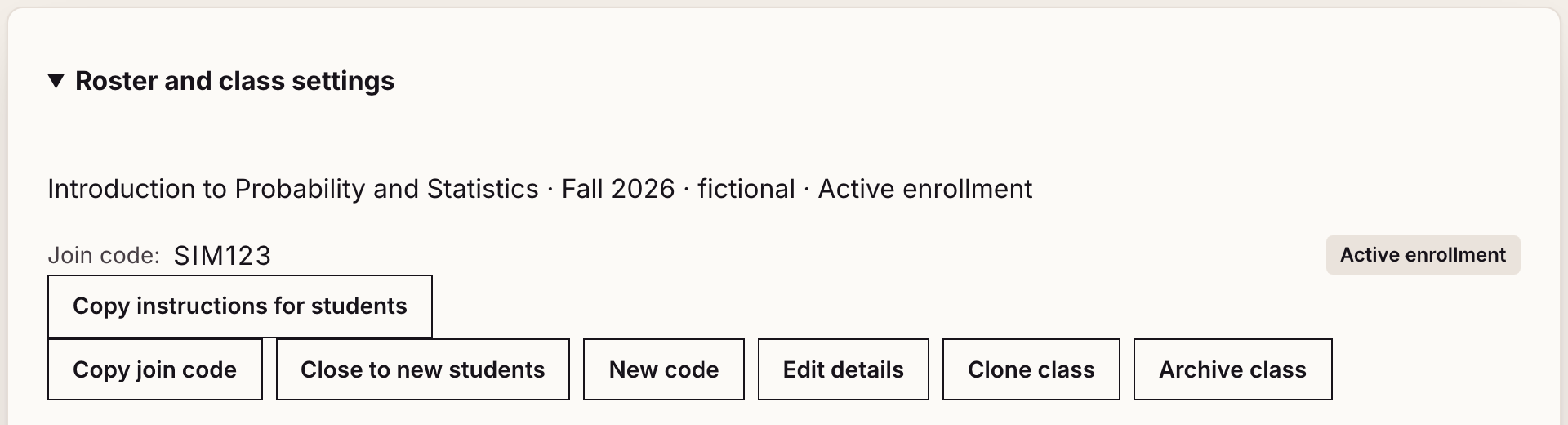
Your class fills itself: share a join code and the students who choose to join appear on the roster. Close or reopen enrollment, clone a class without its students for the next term, and archive it at the end.
Why A class is built from students who chose to join it, so nobody’s name is entered for them.
Notice that the teacher typed no names: each student joined with the code.
A fictional class: the names and numbers are invented. Tap or click a picture to see it at full size.
Classroom decks with live polls
Still being extended
You ask the room a question and the same three students answer.
What it does, and why
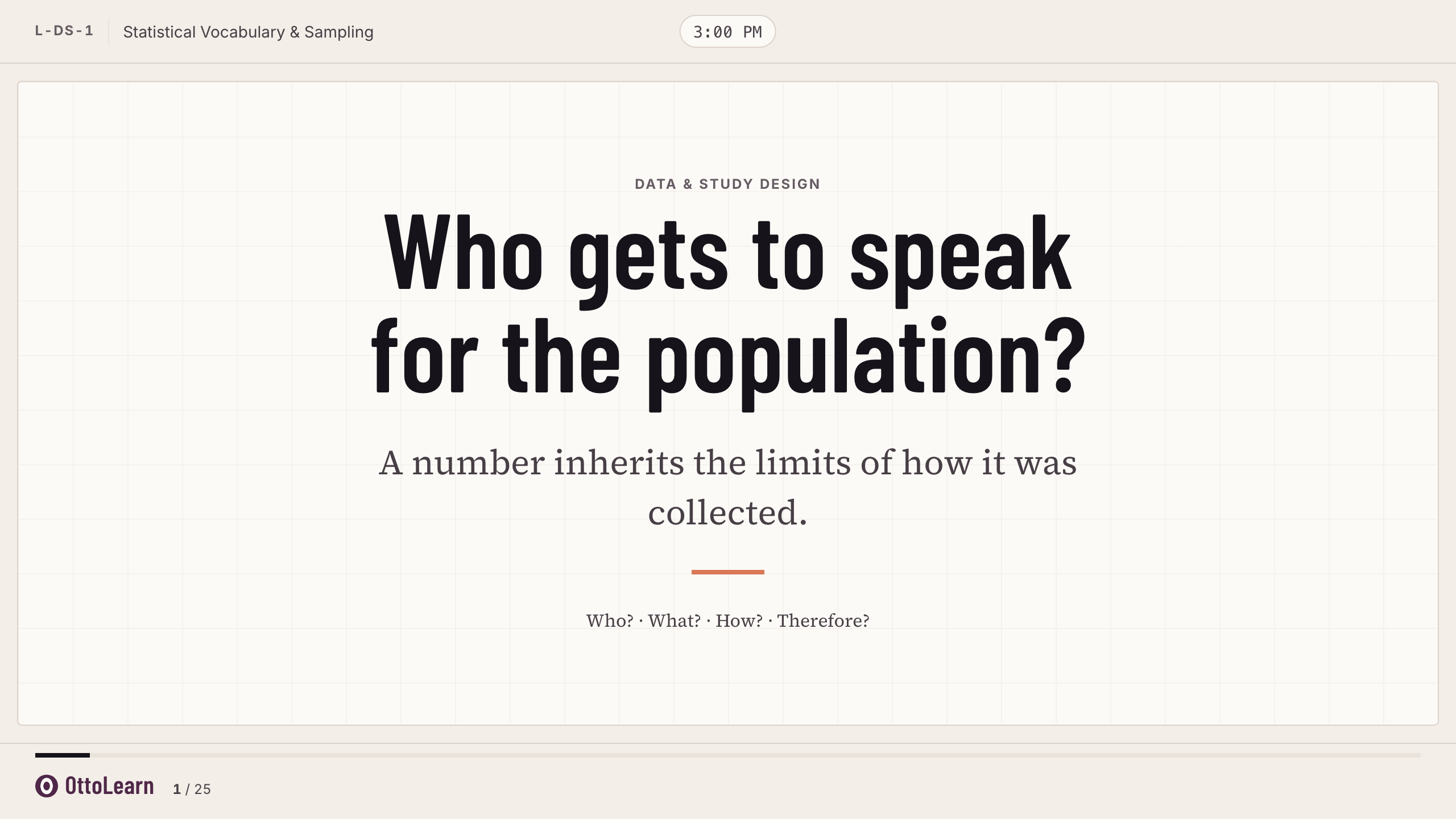
You hear from the whole room: a slide deck that follows the lesson, with questions everyone answers from a phone by scanning a code, without signing in. You see the spread of answers. Running a poll uses a separate presenter sign-in with a password. Decks exist for the first lessons of the course and more are being built.
Why Answers come in without a sign-in, so students can say what they really think. When an answer is tied to a name, some copy a neighbour or pick the safe option, and the spread you see stops being what the room really thinks. When you want to know who understood, the exit ticket is the named channel.
Notice the counter, 1 of 25: a deck follows one lesson, starting from a question. This is the opening slide.
A fictional class: the names and numbers are invented. Tap or click a picture to see it at full size.
A guide that answers “where do I…?”
A new tool means an afternoon of hunting through menus.
What it does, and why
You find the right page by asking: ask Otto, the site’s built-in AI guide, how to enter results or open an exit ticket, and it points you to the page.
Why A guide that could read student records would be one more place for them to leak. So this one is given the list of pages and what they do, the page you are on, whether a class is selected (not which one), your role and your questions in that conversation; not a class, a student or a record.
Before you adopt: four answers
What this asks of your students
Today, reading the lessons and answering classroom polls need no account. To appear in your class, a student signs in with Google or Microsoft, declares being at least 16 and enters your join code; joining is their choice. Otto and the AI hints are optional.
What is recorded about a student, and who decides
About a student in your class you can see: a display name, the results you enter, practice estimates with the number of attempts, the date of the last practice and the next review date (the site schedules a return to each lesson), the days the student was active, and on an exit ticket whether they answered, whether they were right and how sure they were. In a class approved for it, once the student agrees, you also see each practice problem they complete. You see estimates, activity and exit-ticket answers only while practice recording and activity measurement are on for the class. OttoLearn switches recording on or off class by class, within what the school’s policies allow; you can ask us to switch it on or off for your class. The site holds more than a teacher sees: the complete list, where it is kept, for how long and which outside providers are involved, the AI provider included, is in the privacy policy.
What exists today
The course described here is Introduction to Probability and Statistics, a first college course, with 21 lessons. The teacher workspace is built and runs today with fictional test classes; its use with real students starts school by school, once the school has agreed to how student information is handled. Accounts and the AI features remain in a test environment while a privacy impact assessment is completed. Classroom decks exist for the first lessons and one mini test is released. The workspace and the student dashboard are in English, and the lesson text is mostly in English for now.
What happens when you write
Tell us your college, the course, how many groups you teach, and whether your college has an approval process for tools that hold student information. We reply with what applies to your situation: what your students would need to do, what the college would need to approve, and any cost to the college or to students.
Tell us your college, the course, how many groups, and whether your college has an approval process. “What happens when you write” describes the reply.